


Learn how to use your Xbox controller to type on Windows 11, offering a unique and convenient way to navigate your PC without a traditional keyboard.
While Xbox controllers are primarily designed for gaming, Windows 11 offers some nifty features that allow you to use your controller for more than just playing games. One of the standout features is the ability to type with an Xbox controller, offering a unique way to interact with your PC when you don’t have access to a traditional keyboard.
Whether you’re lounging on your couch, in a tight space, or simply prefer using your controller for everything, typing with the Xbox controller can be quite useful. Here’s how you can set it up and get started.
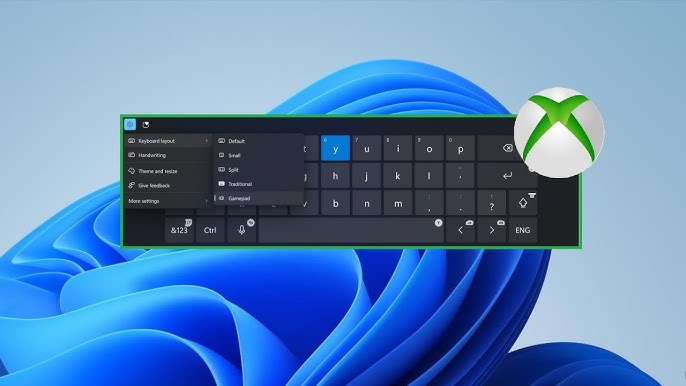
Steps to Type with an Xbox Controller on Windows 11:
- Ensure Your Xbox Controller is Connected: Make sure your Xbox controller is paired with your Windows 11 PC. You can do this via Bluetooth or a USB cable. To connect via Bluetooth, press and hold the Pairing button on the controller, go to Settings > Bluetooth & devices on your PC, and select your Xbox controller from the available devices.
- Enable the On-Screen Keyboard: The key to typing with an Xbox controller is to use the On-Screen Keyboard. This virtual keyboard lets you navigate and input text using the controller. To enable it:
- Go to Settings > Accessibility.
- Scroll down to Keyboard and turn on the On-Screen Keyboard.
- Use the Xbox Controller to Navigate the On-Screen Keyboard: Once the On-Screen Keyboard is open, you can use your left thumbstick to move the cursor and highlight the keys you want to press. Use the A button to select a key. You can use the D-pad or left thumbstick to move between letters, numbers, and other symbols on the keyboard.
- Customize Input Settings (Optional): If you find it difficult to navigate or need additional options, you can adjust the Ease of Access settings to make the keyboard more suited to your needs. Features like key repeat rates, cursor speed, or sticky keys can be configured for better control.
- Typing in Apps or Browsers: Now that you have the On-Screen Keyboard and the Xbox controller set up, you can use it for typing in search bars, web browsers, and even in-game text input.
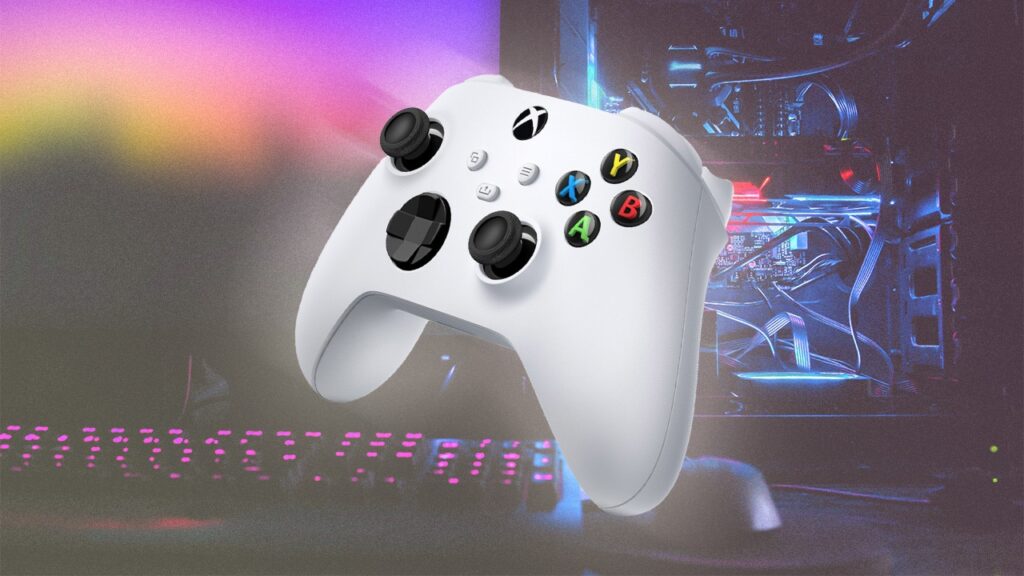
Advantages and Limitations:
While typing with an Xbox controller is a cool feature, it does have limitations. The On-Screen Keyboard is not as fast or efficient as using a traditional keyboard, and typing long paragraphs may be cumbersome. However, for casual browsing or quick responses, it offers a convenient alternative.
Highlight:
- “You can type with your Xbox controller on Windows 11 using the On-Screen Keyboard.”
- “To get started, ensure your Xbox controller is connected via Bluetooth or USB cable.”
- “Navigate the On-Screen Keyboard using the left thumbstick, and select keys with the A button.”
- “This feature is perfect for casual browsing or quick responses, though it may not be efficient for long texts.”

